Reviewing returns
Comparison shows every return side by side, to find what needs a look. Bid Review shows one return next to its own document, to check it line by line.
Totals and collections
- In Comparison, read the total row. Each supplier's total is the sum of the prices placed for them, checked against the tender sum they stated.
- Read the subtotal rows across the returns. A section well above or below the others usually means missing scope, a changed quantity or a different reading of the spec.
- Open those sections first. One that adds up and sits in line with the others needs far less checking.
Bid Review
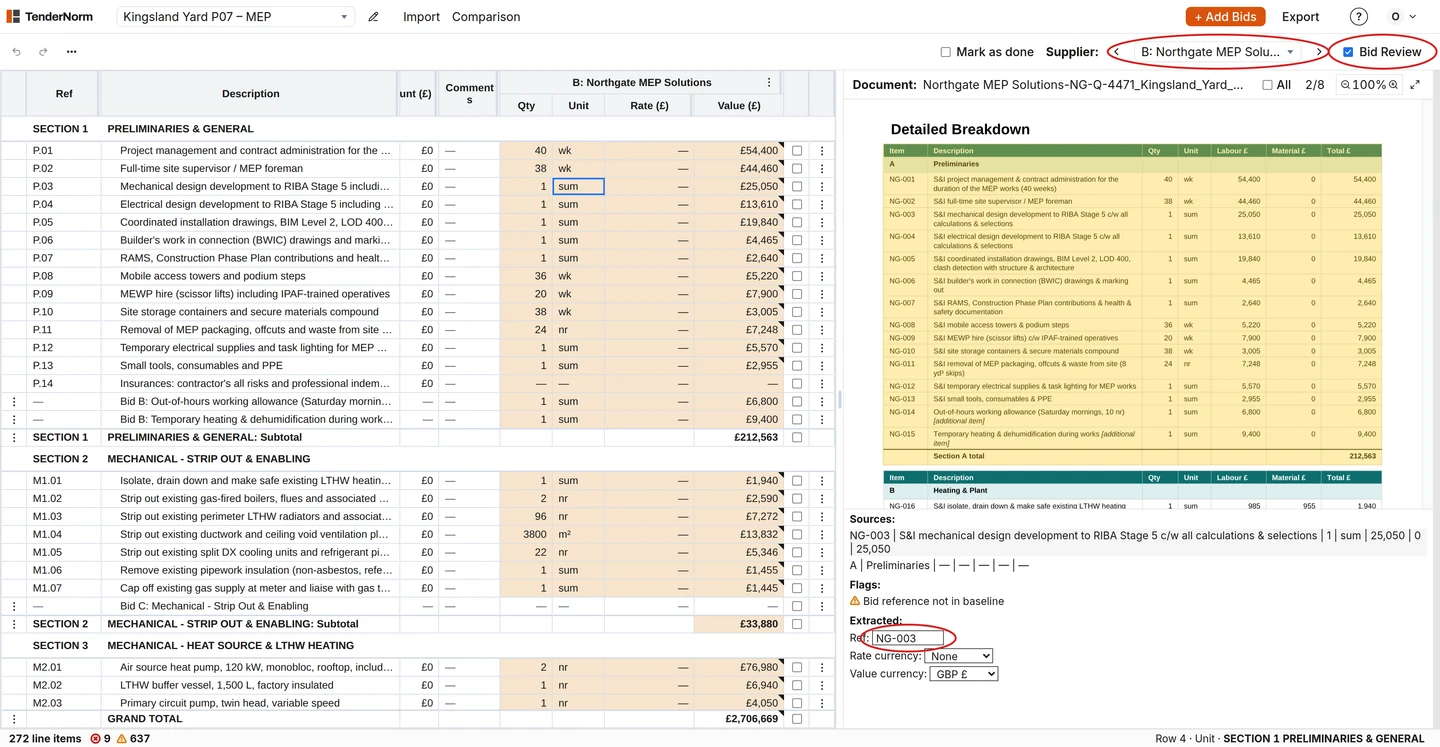
- Tick Bid Review above the table, then choose a return under Supplier.
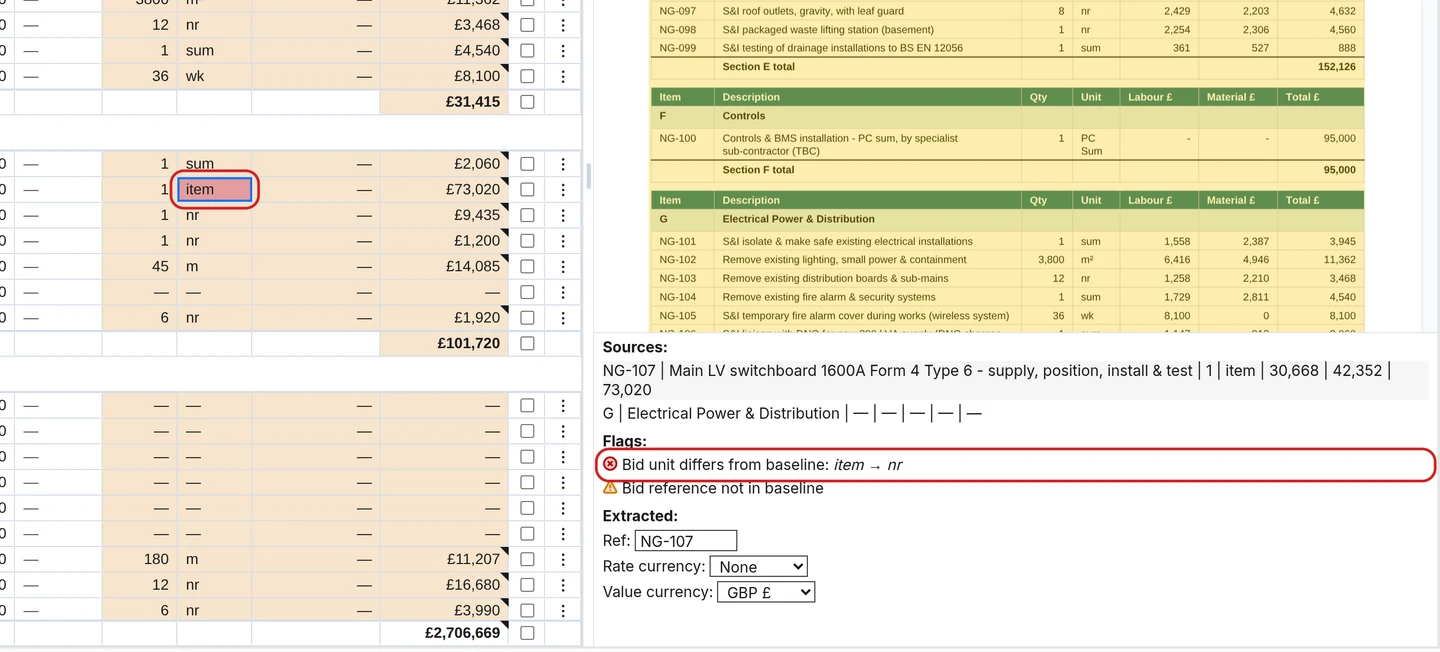
- Click a cell to see its flags and Sources.
- Click a source to open the exact line in the supplier's document.
- Press Ctrl + Down (Cmd + Down on a Mac) to jump to the next flagged cell.
Correct a price
- Double-click a supplier's Qty, Unit, Rate or Value cell, type the replacement and press Enter.
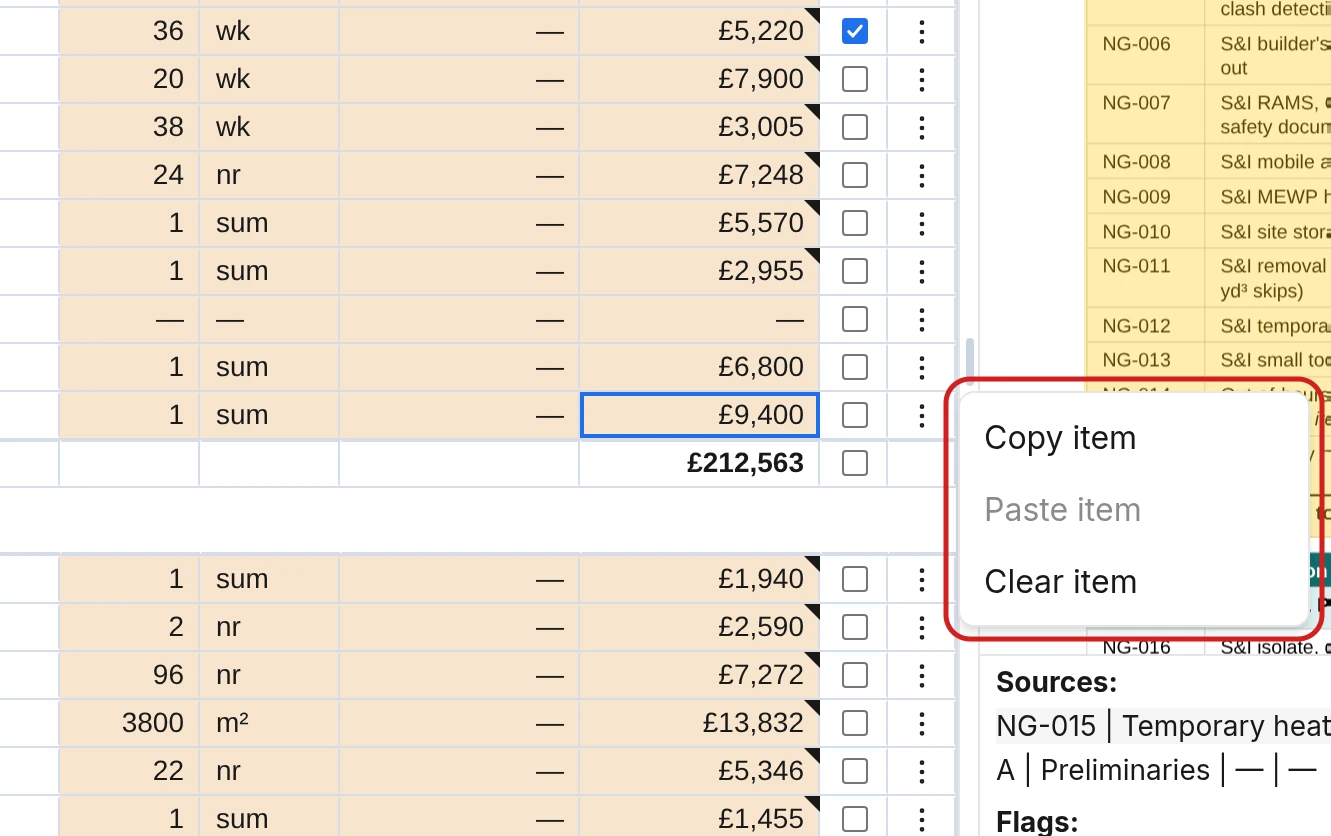
- To put a price on a different item, click the dots on its row and choose Copy item, then Paste item on the right row. Then choose Clear item on the row it came from.
- To remove a price, click the dots on its row and choose Clear item.
- Click Undo above the table to reverse a change.
Marking reviewed
- In Bid Review, press Ctrl + Down (Cmd + Down on a Mac) to go to the next flagged cell and check it against its source.
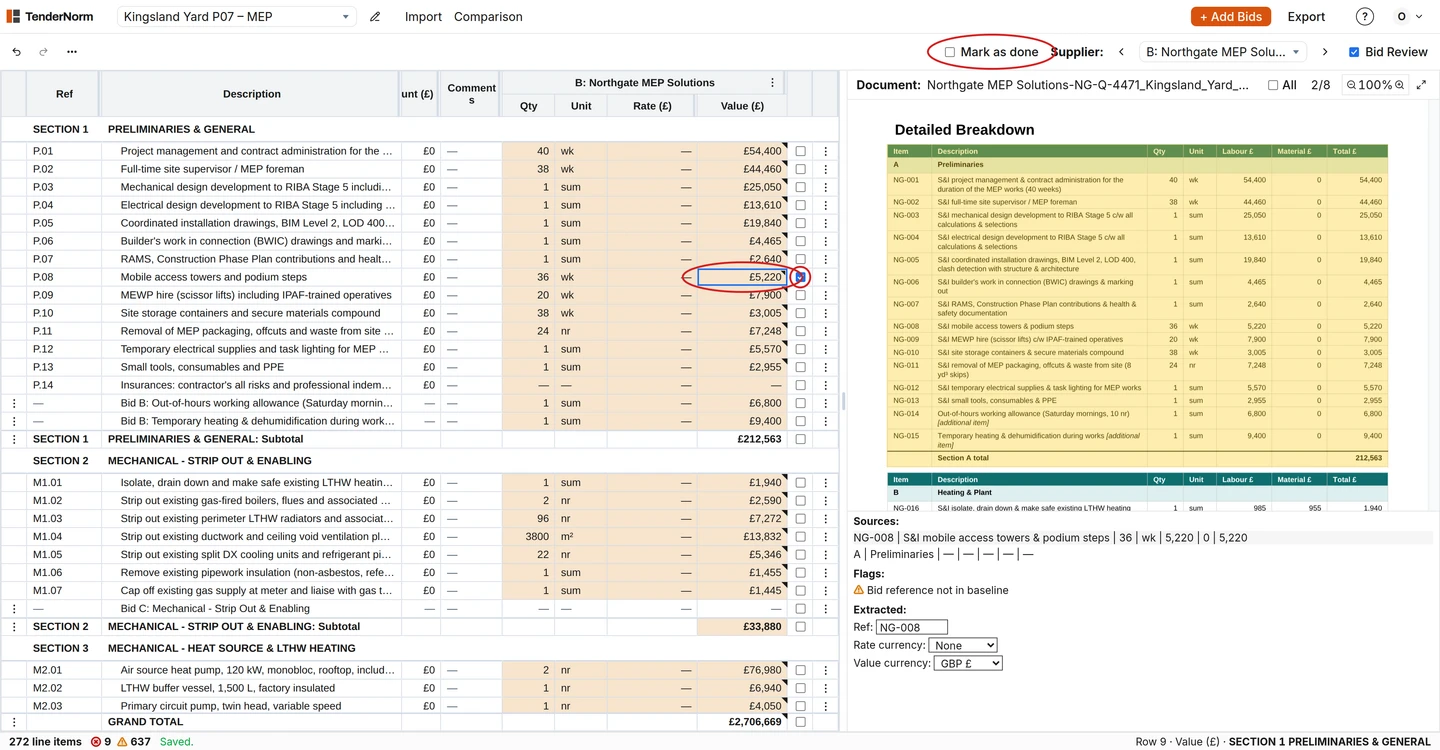
- Once a row is checked, press Space or tick the box in its cell to mark it reviewed. Its flags leave the counts in the status bar.
- Press Shift + Space, or tick the section's box, to mark a whole section reviewed.
- Carry on until no flags are left, then tick Mark as done above the table to close the return and move to the next supplier.
What the flags mean
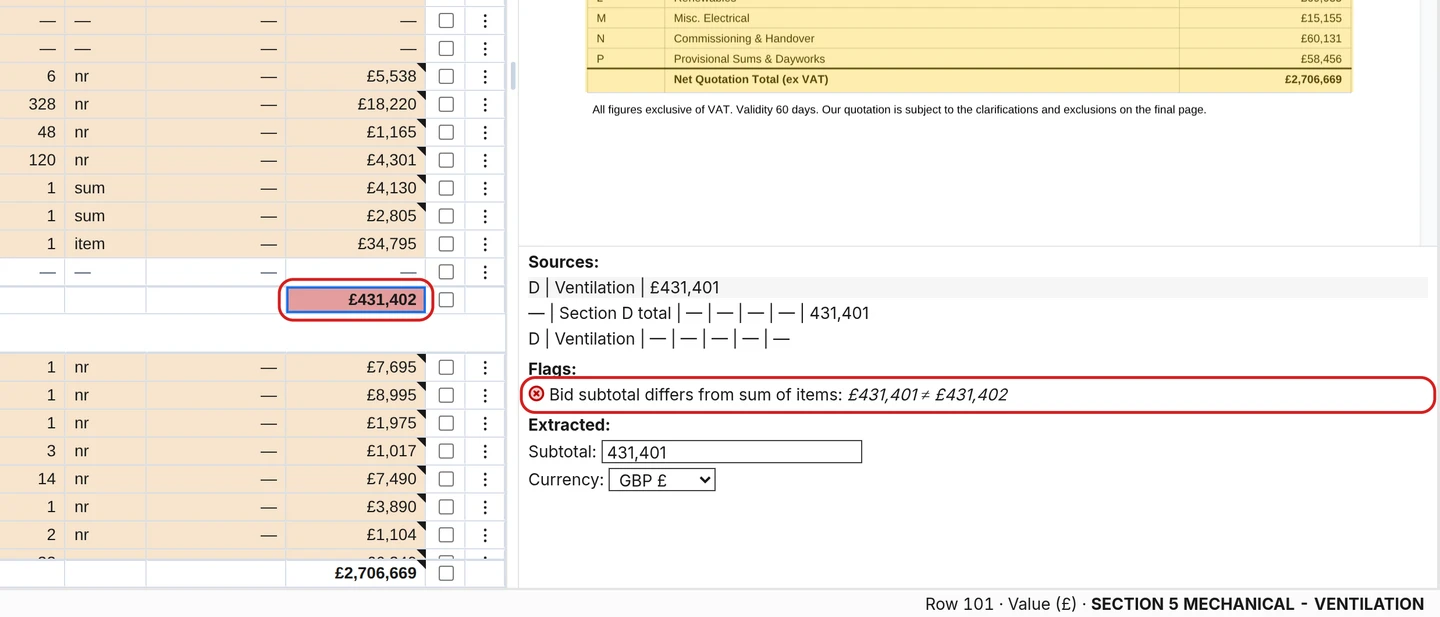
A flag means "check this", not "this is wrong". Click a flagged cell to see why, then open its source to check the supplier's document.
- Yellow: something is missing or unclear.
- Red: it doesn't match the baseline or the supplier's own sums.
Extras and Unmatched
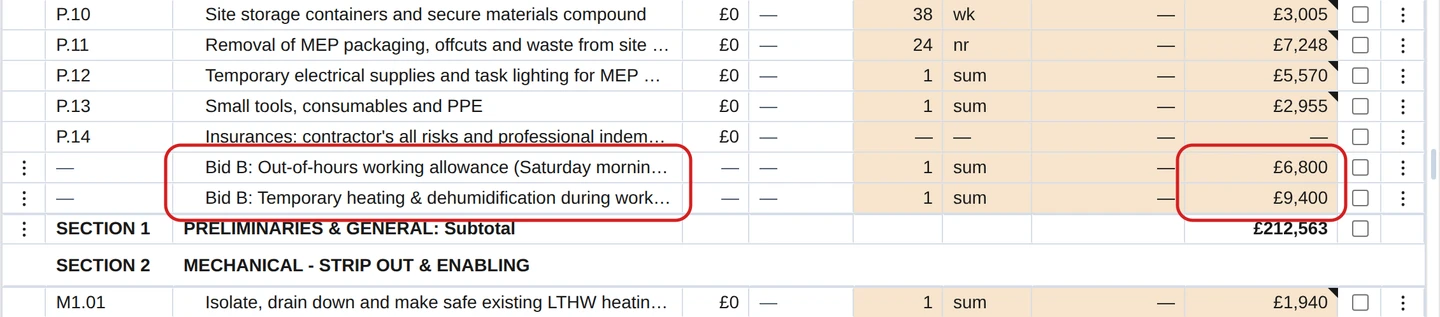
- Extra prices the supplier added sit in the section as their own rows, such as "Bid B (not in tender sum): Temporary heating". A * means the price isn't in their tender total.
- Unmatched, at the top of the table, holds anything that couldn't be placed. Check it when a section total looks short.
Notes on items
When a supplier prices something different or qualifies it, a short note appears in the cell's corner, such as "Insulation omitted." or "Mitsubishi in lieu of Daikin." Hover over the triangle to read it.
- To add a note, select a cell and press Shift + F2, or right-click and choose Add note.
- Notes are included in the Excel export.
